
.png)
Create a plugin
Create a plugin from Settings → Plugins, find its Plugin ID and Secret, and understand the General Information tab.
A plugin is one embed configuration: credentials, allowed domains, editor settings and a plan. Create one per product that embeds the editor. Most customers need exactly one.
Create the plugin
Open Settings → Plugins
In the dashboard sidebar open Settings and choose Plugins. The page lists every plugin on your account with its status and plan.
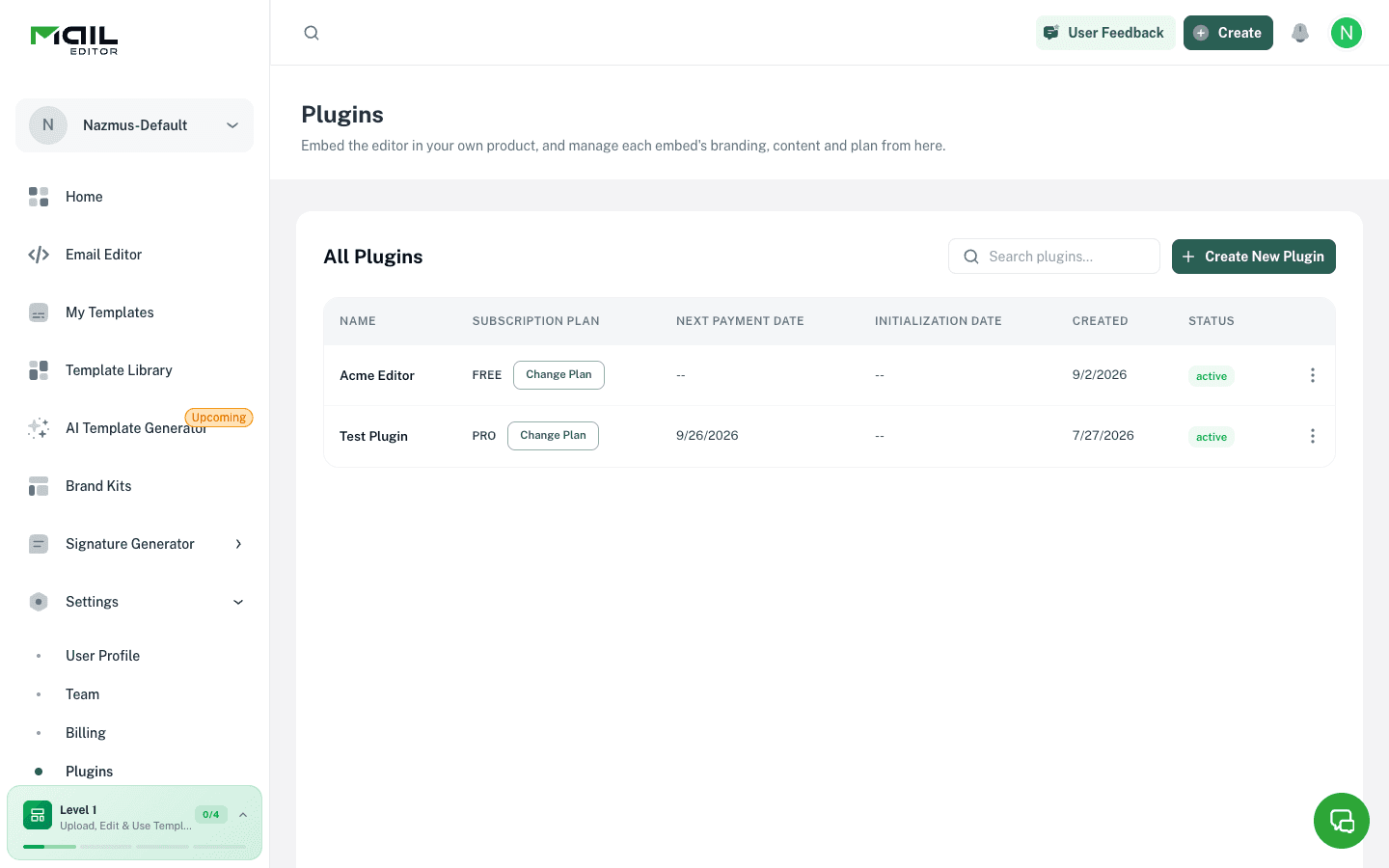
Click Create New Plugin
Enter a Plugin Name. It is shown in your dashboard and can be renamed later.
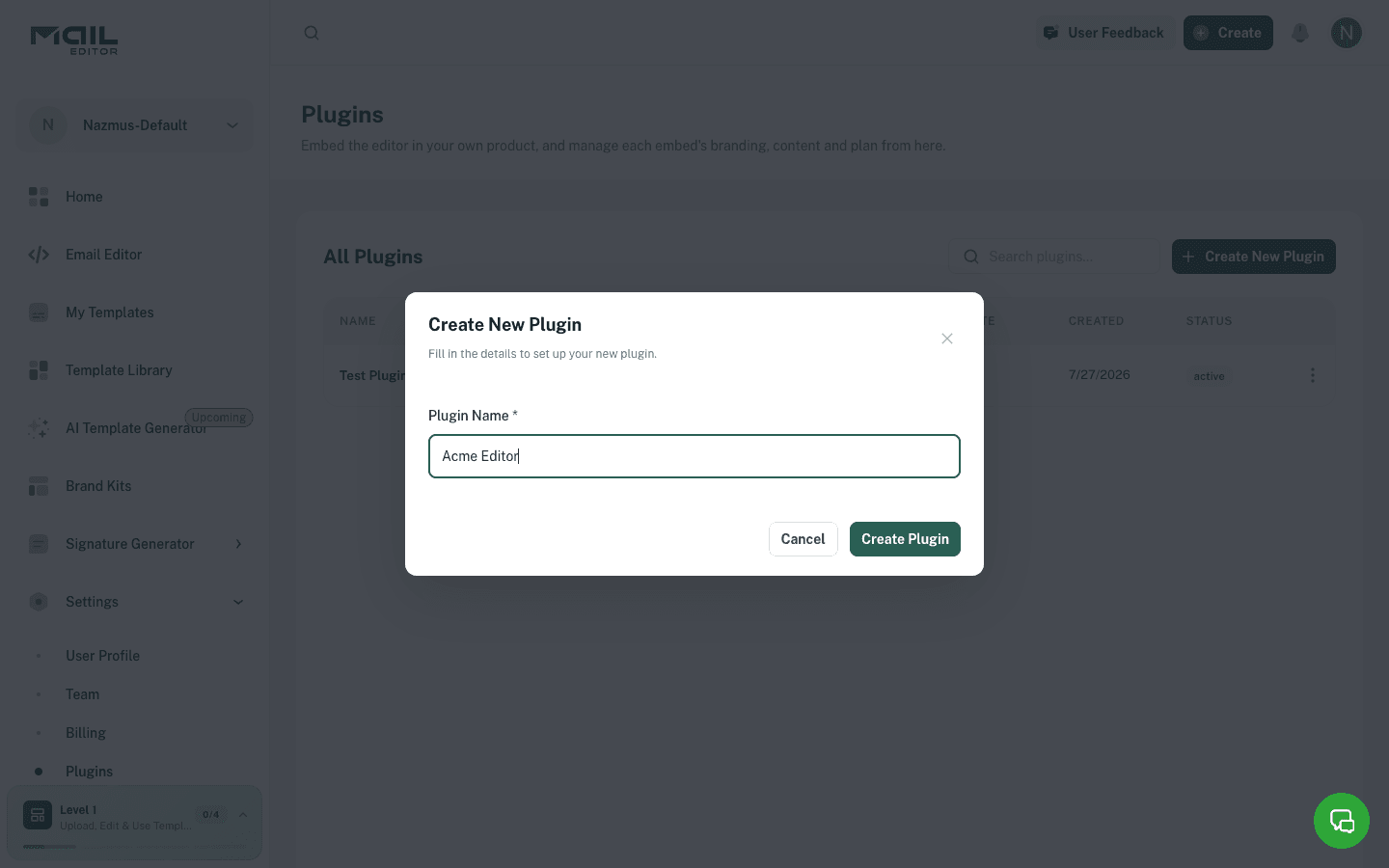
The new plugin starts on the Free plan with the signed identity mode and is ready within a few seconds.
Open the plugin
Click the plugin's name to open its settings. The tabs are grouped as Application, Editor experience, Services and Delete Application.
Guided setup
Opening a new plugin starts a setup dialog.
| Step | Notes |
|---|---|
| 1. Allowed domain | The origin your product is served from. At least one is required to continue — the editor will not start anywhere else. |
| 2. End user identity | signed, open or backend. See End user identity below. |
| 3. Embed the editor | Your Plugin ID, Secret Key and an iframe snippet filled in for the mode you picked. |
Skip setup closes the dialog and marks the plugin as set up.
The dialog does not open again. The snippet stays available from the Embed Code button in the plugin header, and everything it covers can be changed later from the tabs.
General Information tab
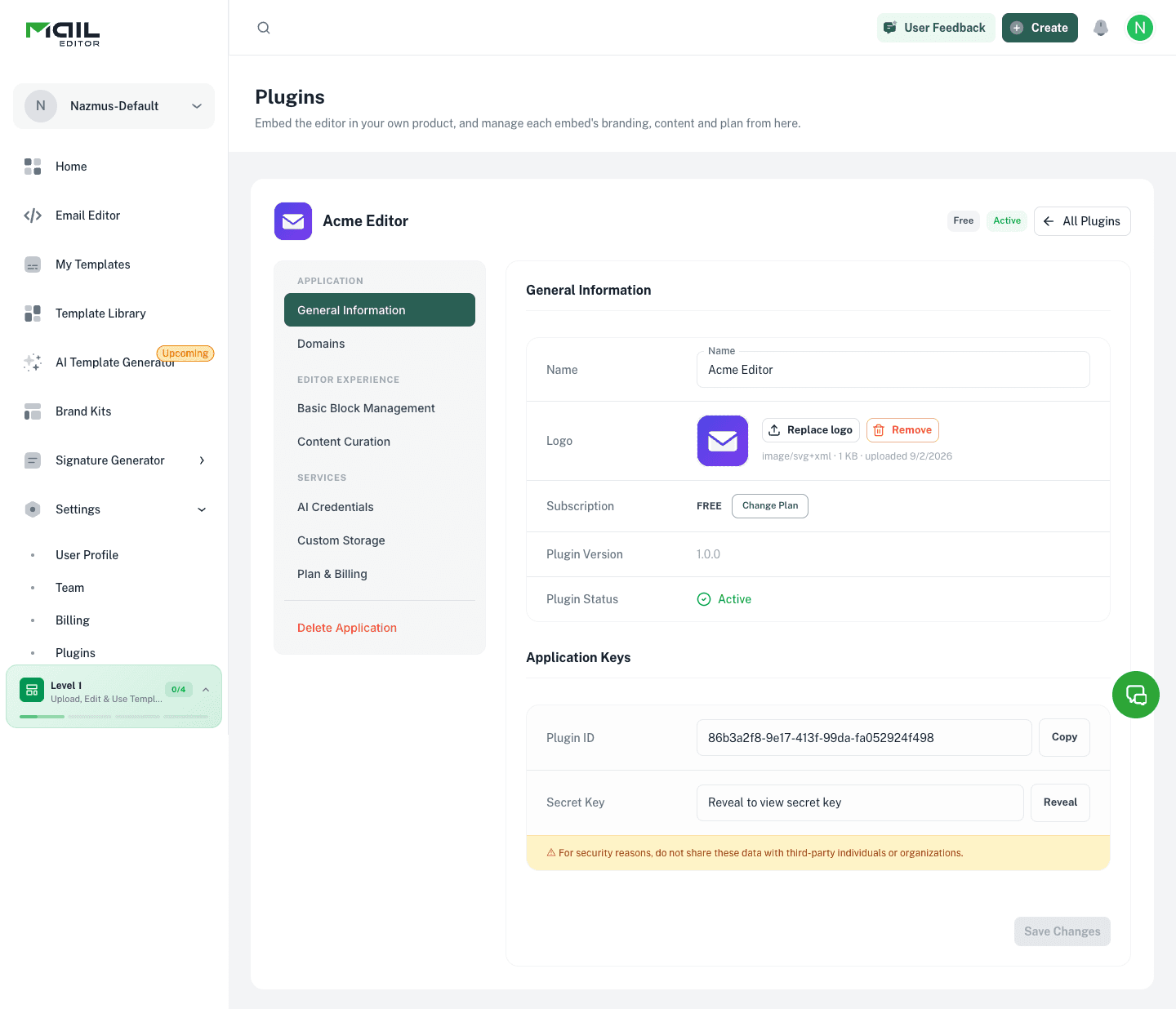
| Field | Notes |
|---|---|
| Name | Shown in your dashboard and inside the editor. |
| Logo | PNG, JPEG, WebP or SVG up to 2 MB. Shown inside the embedded editor. |
| Subscription | The current plan, with a Change Plan button. See Plan and billing. |
| Plugin Version | A label you can pass to the editor as plugin_version. Informational. |
| Plugin Status | active or inactive. An inactive plugin refuses new editor sessions. |
| Plugin ID | Public identifier. Goes in the iframe URL and the X-Plugin-Id header. |
| Secret Key | Hidden until you click Reveal. Used only on your server. |
The secret never goes in a browser
Keep the Secret Key in your server's environment. Use it to sign identities and to call the Backend API. Any request that sends the secret from a browser is rejected.
End user identity
The End user identity setting on this tab decides how the editor learns who the current user is.
| Mode | Behaviour |
|---|---|
signed | Default. The iframe URL must carry external_user_id, identity_expires and identity_signature, produced on your server with the Secret Key. |
open | The page declares external_user_id without a signature. Anyone who can load your page can claim any user id. Only for prototypes. |
backend | The editor cannot be opened from a browser. Only your server can create sessions with the Secret Key. The Backend API keeps working. |
Changing the mode ends every live editor session for the plugin, so users mid-edit must reload.
Next: Allowed domains.