
.png)
Editor settings
Control which blocks the editor shows, and connect your own AI, stock photo or storage keys.
The tabs under Editor experience and Services shape what your users see inside the editor. Changes apply to sessions opened after you save; users already in the editor see them on their next reload.
Basic Block Management
The block palette has 14 blocks: image, text, button, spacer, divider, heading, video, social, timer, slider, banner, menu, html and table. This tab lets you hide any of them.
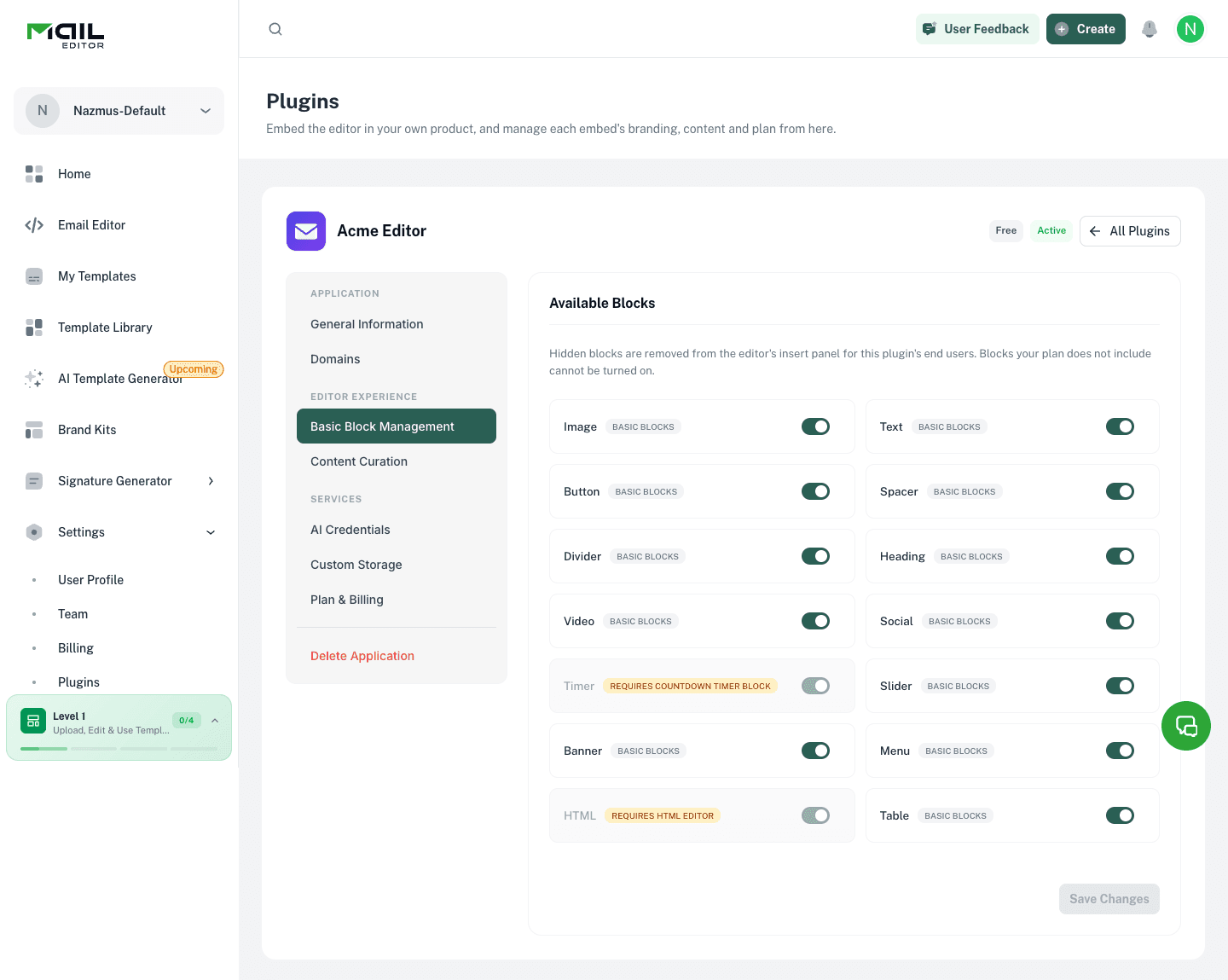
A block appears in the editor only when both gates pass:
- Your plan includes it.
timerneeds the countdown timer feature andhtmlneeds the HTML editor feature. On the Free plan these two are greyed out. All other blocks are in every plan. - You have not hidden it. Toggle a block off to remove it from the palette for everyone.
Hidden blocks stay hidden after an upgrade. Blocks a plan does not include stay unavailable even when toggled on.
Editor Theme
The editor's own interface (header, sidebar, buttons and panels) can be recolored to match your product. This tab holds four colors, each a hex value, and a font:
| Color | Used for |
|---|---|
| Primary | Buttons, active tabs and highlights. |
| Secondary | Secondary actions and accents. |
| Foreground | Text and icons. |
| Background | Panels and surfaces. |
| Font | The font family for all interface text. Any Google Fonts family name, such as Poppins. |
Shades such as hover states and borders are derived from the four colors automatically. A color or font you leave unset keeps the MailEditor default, so you can change only the primary color and nothing else. The font picker suggests Google Fonts families as you type, but you can enter any family name; one Google does not know falls back to the default font. Reset to default clears every field; save afterwards to apply it.
The colors need the custom_ui_styles plan feature and the font needs custom_fonts. On a plan without them the fields are disabled with a link to change plan, and anything saved on an earlier plan stops applying to the editor until the plan includes it again.
The theme changes only the editor's interface. It never touches the emails your users design.
Templates and modules
The editor's start page offers MailEditor's library of templates and reusable modules, grouped by category. Which categories your plugin shows is configured by MailEditor for each plugin; contact support to change them.
AI Credentials
The editor has an AI writing assistant for text blocks. It runs on your own provider key: the provider bills you for usage, and MailEditor does not cap how many generations your users make.
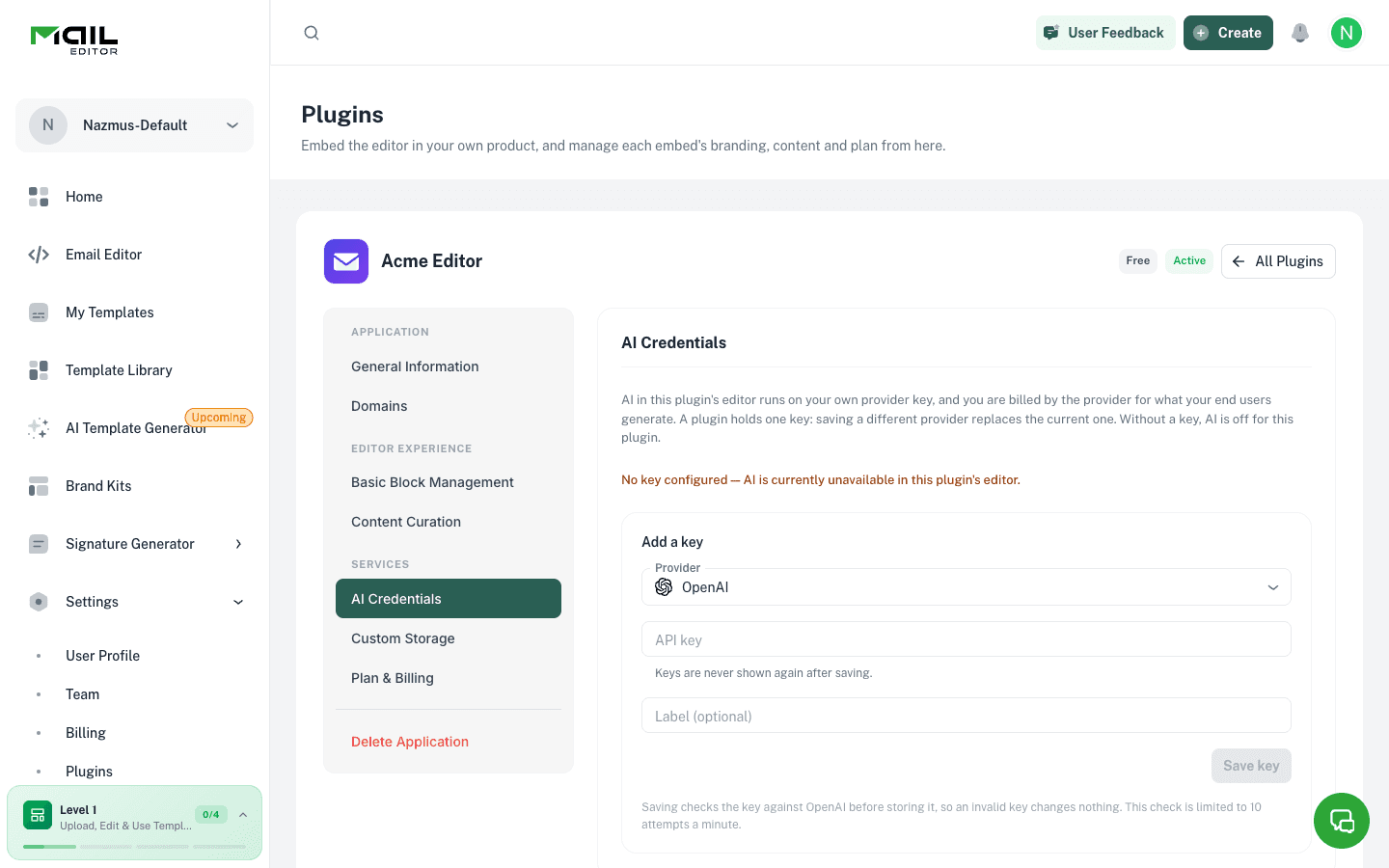
Choose a provider (OpenAI, Anthropic, OpenRouter or Gemini), paste the API key and optionally give it a label. The key is checked against the provider before saving. A plugin holds one key; saving another provider replaces it.
After saving, only the last four characters are shown. Remove the key to switch the assistant off; without a key the AI button is hidden.
Stock Images
The editor can offer a stock photo library beside the user's own uploads. It runs on your own provider keys, the same way the AI assistant does, so the provider sets the limits and MailEditor adds no quota of its own.
Three providers are supported, and they are independent. Connect one, two or all three; each becomes a source the user picks from a dropdown inside the editor's Stock Images tab. Until at least one is connected, that tab does not appear at all.
| Provider | Where to get a key | Field |
|---|---|---|
| Unsplash | unsplash.com/developers | Access Key |
| Pexels | pexels.com/api | API Key |
| Pixabay | pixabay.com/api/docs | API Key |
Application name is optional and goes on every attribution link as utm_source, which is how the providers see where the traffic came from. Leaving it empty sends maileditor, so set it to your own product's name.
After saving, only the last four characters are shown, along with the date the key was last used for a search. Replace key overwrites it, Disconnect deletes it and removes that source from the editor.
The key is not checked when you save it
Unlike the AI key, a stock key is stored without a test call to the provider. A typo is only visible when a user searches and the tab reports that the provider is unavailable. Search once in the editor after connecting.
Unsplash issues new keys in demo mode with a low hourly request ceiling, which a handful of users browsing the picker can hit. Apply to Unsplash for production access before you ship.
Pictures from Unsplash and Pexels go into the email as links to the provider's CDN. Pixabay forbids that, so a Pixabay picture is copied into the user's image library first, and it then counts against the plan's storage quota like any upload.
Custom Storage
By default, the images your users upload, their templates and version history are stored by MailEditor and count against the plan's storage quota. Connect your own S3-compatible bucket to keep those files under your control and outside the quota.
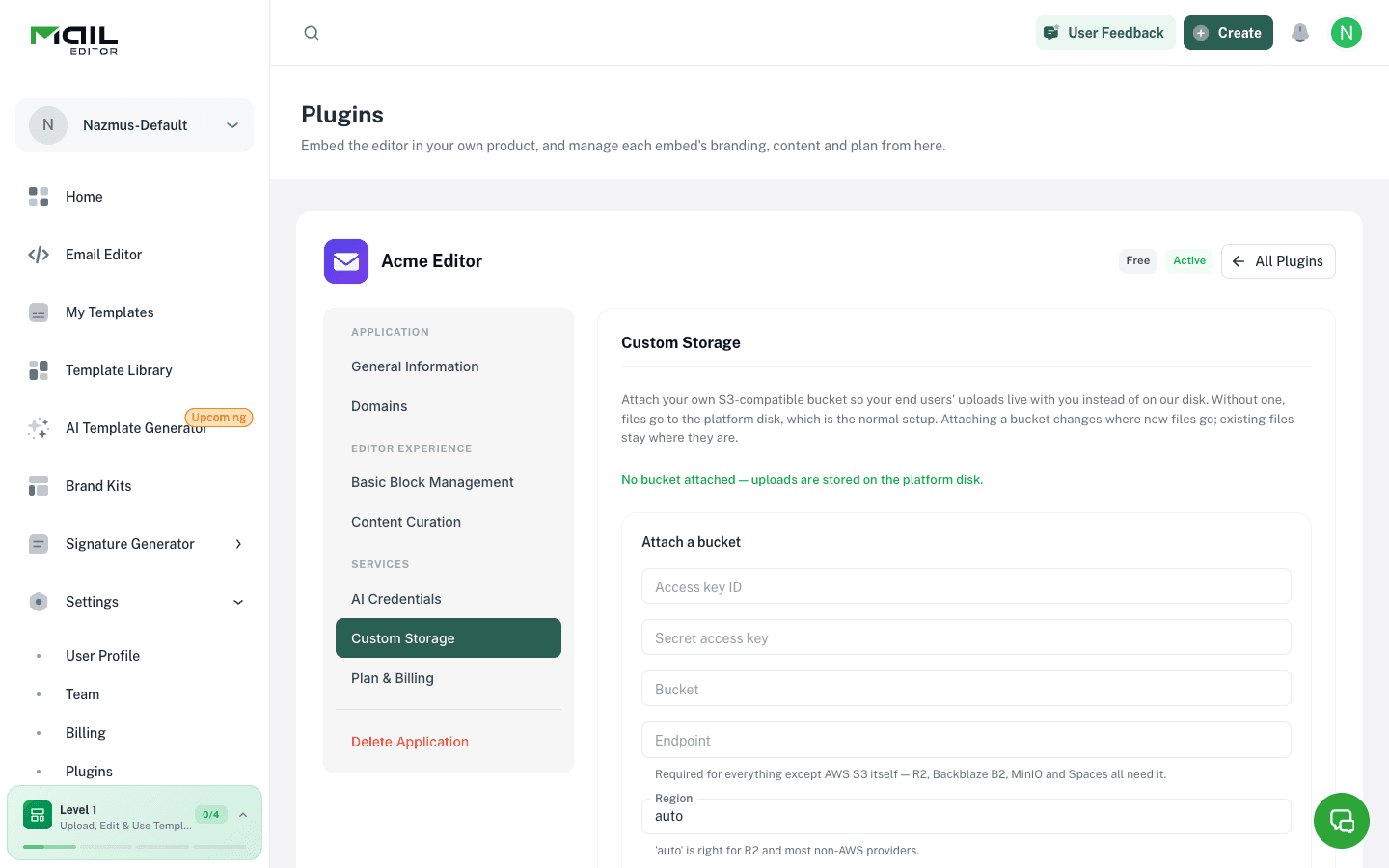
| Field | Notes |
|---|---|
| Access key ID and Secret access key | Credentials for the bucket. |
| Bucket | Bucket name. |
| Endpoint | The S3 API endpoint. Required for every provider except AWS S3 (Cloudflare R2, Backblaze B2, MinIO, DigitalOcean Spaces). Must be publicly reachable. |
| Region | Defaults to auto, which R2 and several other providers expect. |
| Use path-style endpoint | On by default. AWS S3 usually wants it off. |
| Public URL | CDN or custom domain that serves uploaded files to browsers. Required for image uploads. |
| Path prefix | Optional key prefix, so several plugins can share one bucket. |
On save, MailEditor writes, reads and deletes a probe object and refuses the configuration if any step fails.
Files never move
Images uploaded before you connect a bucket stay on MailEditor storage, and images uploaded to your bucket stay there if you disconnect it.